
/config or the prefix command w!config (also cfg, configuration, setup).
Server Administrator permission is required to open the panel.
The config panel at a glance
1
Launch
Run
/config in a channel Warden can access.2
Pick a module
Choose from the Select a module to configure… menu at the bottom of the embed.
3
Adjust and save
Update toggles, channels, and roles. Click Save when a flow provides one.
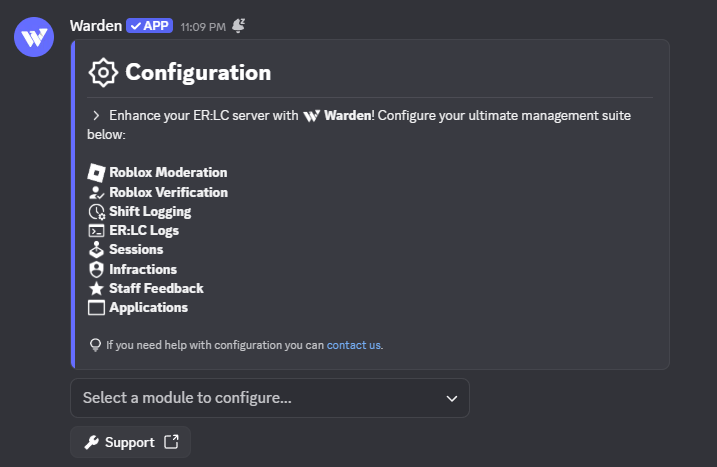
The Warden configuration panel — module picker at the bottom
Module directory
Each row links to a dedicated page with commands, settings, and tips.Access & roles
Access & roles
Permissions — Staff, Admin, and Management role tiers used across commands and approval flows.
ER:LC & in-game
ER:LC & in-game
Roblox Moderation — Issue in-game punishments from Discord.ER:LC Server Logs — Stream joins, leaves, kills, modcalls, and commands.Sessions — Polls, starts, and session announcements.All three require ER:LC Integration.
Staff operations
Staff operations
Shift Logging — On-duty tracking, quotas, and leaderboards.Infractions — Internal staff discipline with optional approval.Staff Feedback — Member-submitted ratings on staff.
Community
Community
Verification — Roblox account linking and role gating.Applications — Custom forms with reviewer workflows.